
ApiCatcher for Windows
Making Windows HTTP/HTTPS packet capture and debugging simpler
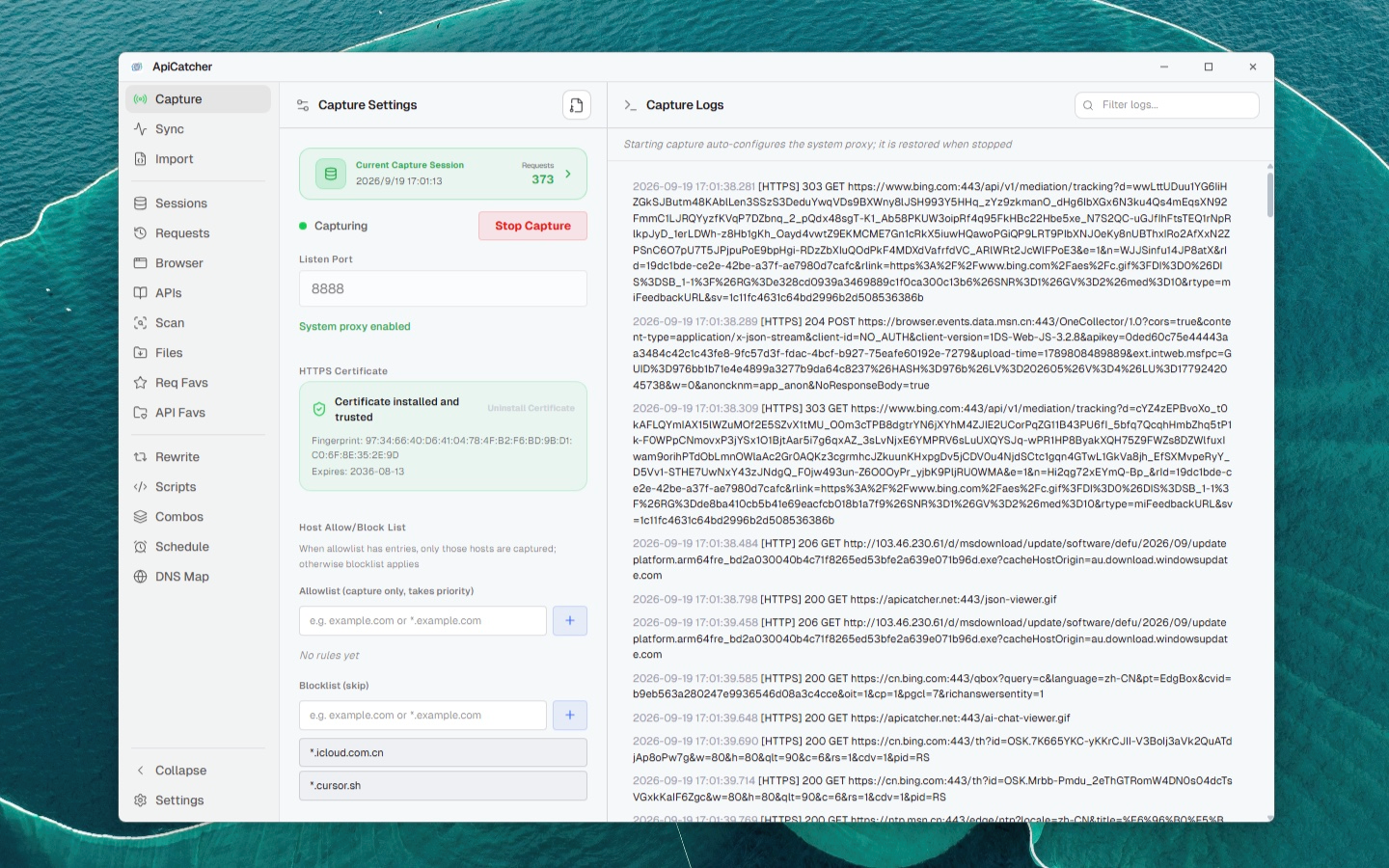
System proxy and TUN capture modes. Switch between them in one click to intercept all system traffic.
Professional Packet Capture & API Debugging Tool
Comprehensive network request capture, Mock rewriting, AI scripting, and request replay—all in one efficient network debugging service.
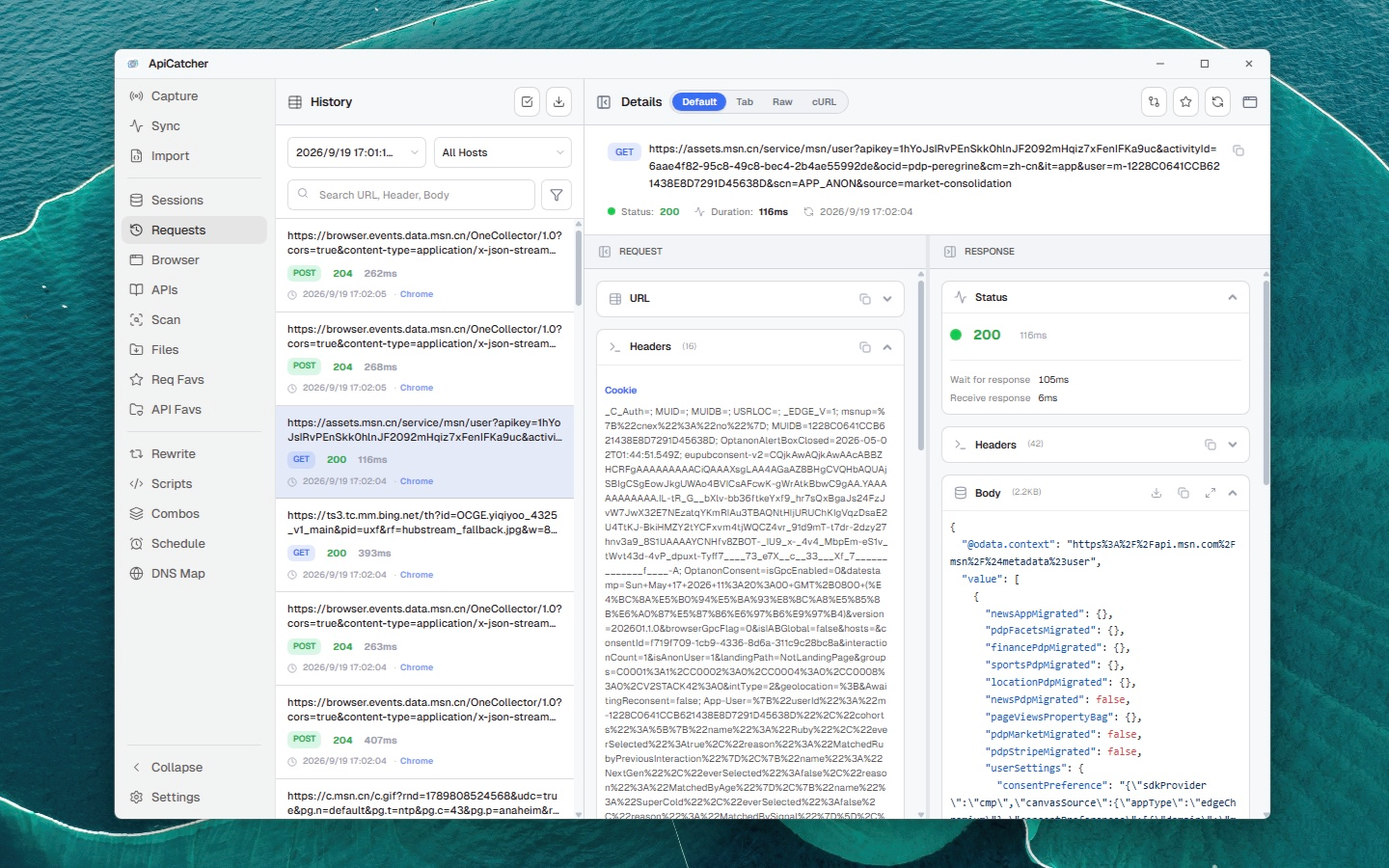
Capture HTTPS Traffic
Directly capture and analyze HTTPS requests and responses on Windows.
Capture WebSocket Traffic
Support capturing WS/WSS traffic and displaying data frames as a chat message list.
Allow/Deny Host List
Configure Host allow/deny lists to filter requests and avoid capturing traffic from other applications.
Request Replay
Replay requests with a single tap to quickly reproduce and verify issues.
Combined Replay
Drag and drop to combine multiple requests, supporting dependent parameter injection and sequential execution.
Request Rewrite
Supports Mock, modification, dropping, and other rewrite behaviors to cover common debugging needs.
Execute Scripts
Provides scripting capabilities for complex rewrites and encryption algorithms, with rapid testing.
Scheduled Request Replay
Supports triggering replays on a schedule to assist automated testing and regression verification.
Export Requests
Supports exporting request records for easy sharing and reproduction.
Export API
Automatically generates API documentation, exportable to Postman / Apifox.
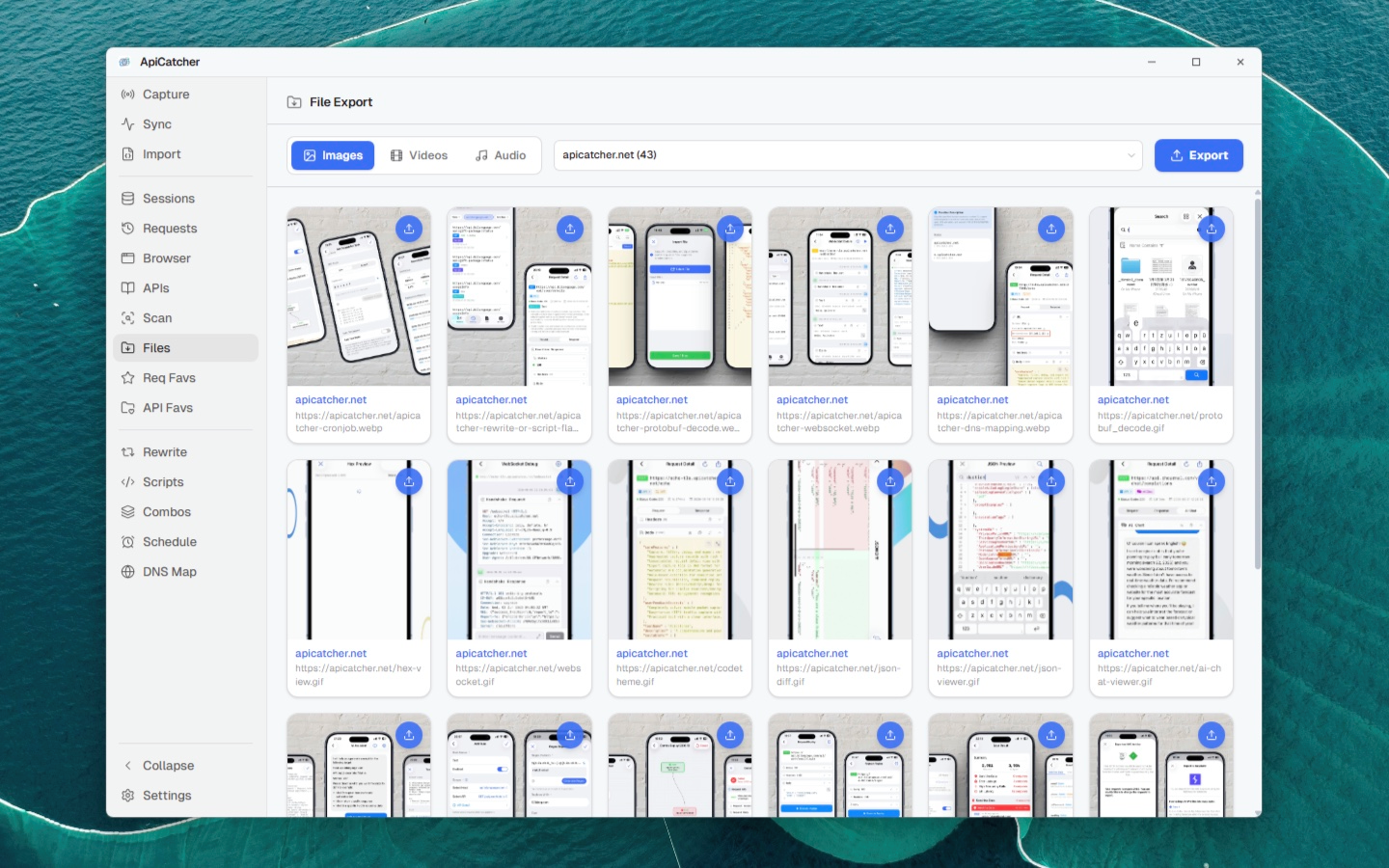
Export Image/Video/Audio
Automatically identifies and extracts media requests, supporting merging of segmented downloads.
API Scanning
Rule-based detection and statistics from captured traffic, supporting custom scanning rules.
DNS Mapping
Define custom DNS resolution rules to map domain names to specific IP addresses.
Protobuf Decode
Automatically decode Protobuf-encoded request or response Body.
Clean, Easy-to-Use Windows Network Capture & Debugging Experience
Empowering Windows developers to efficiently locate and analyze HTTP and WebSocket traffic.
TUN mode capture
Creates a virtual network interface and takes over the default route and DNS, so requests that skip the system proxy are captured. Stopping capture restores the previous default route and DNS.
Automatic Local System Proxy Switching
One-click Windows proxy management. Automatically modifies registry settings on capture start and seamlessly restores on exit. Perfectly captures Chrome and other mainstream browser traffic while preventing network residue that causes connectivity issues.
Smart CryptoAPI Certificate Store Injection
One-click import of a locally generated secure CA root certificate into the Windows system certificate store (Trusted Root Certification Authorities). Skip tedious manual steps and quickly enable HTTPS decryption.
Millisecond Real-Time iOS Traffic Sync
Scan and connect! Leveraging high-performance WebSocket to instantly sync packets captured on iOS devices (ApiCatcher App) to your Windows desktop screen for effortless offline packet analysis.
Extremely Simple and Intuitive Interaction Design
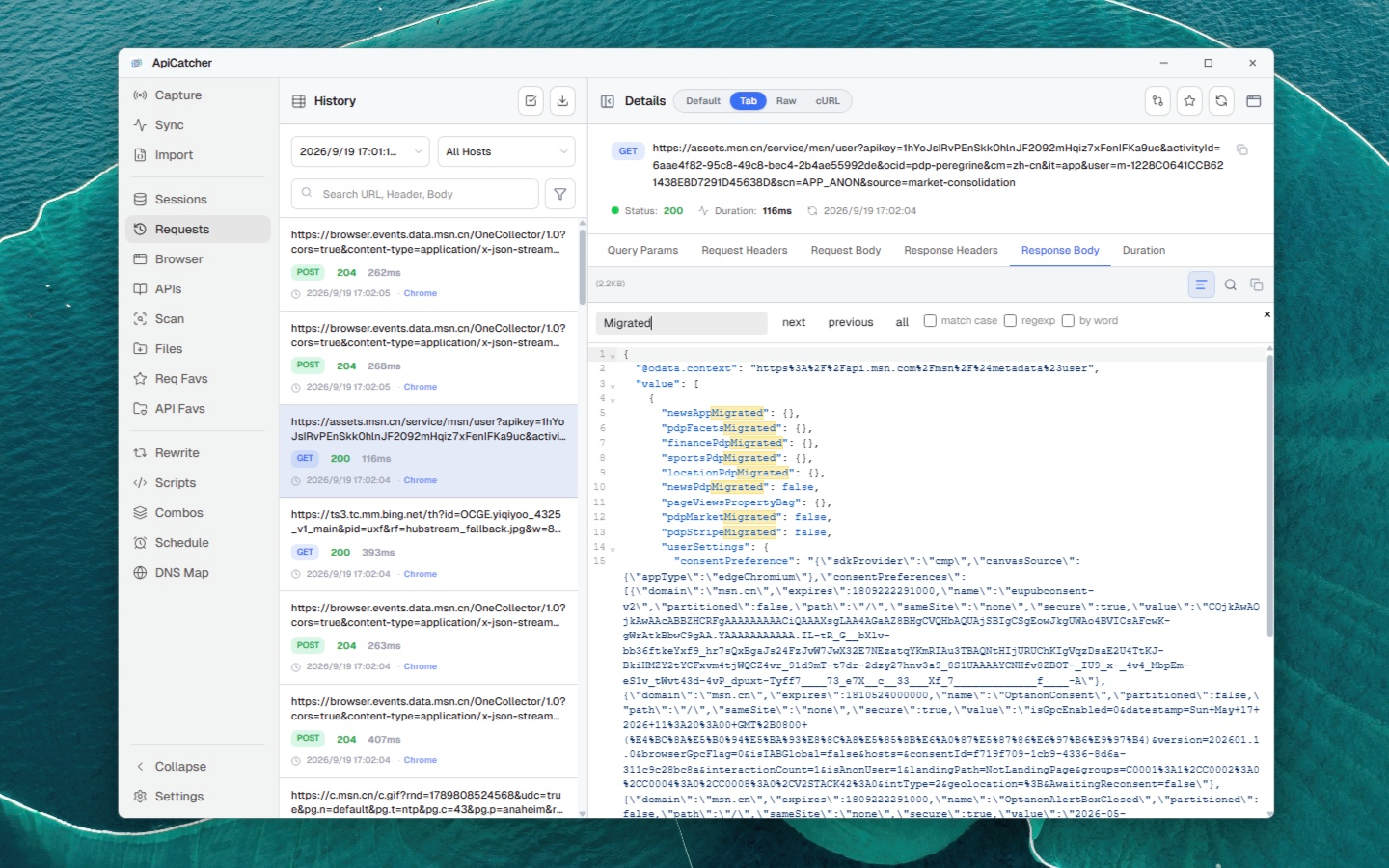
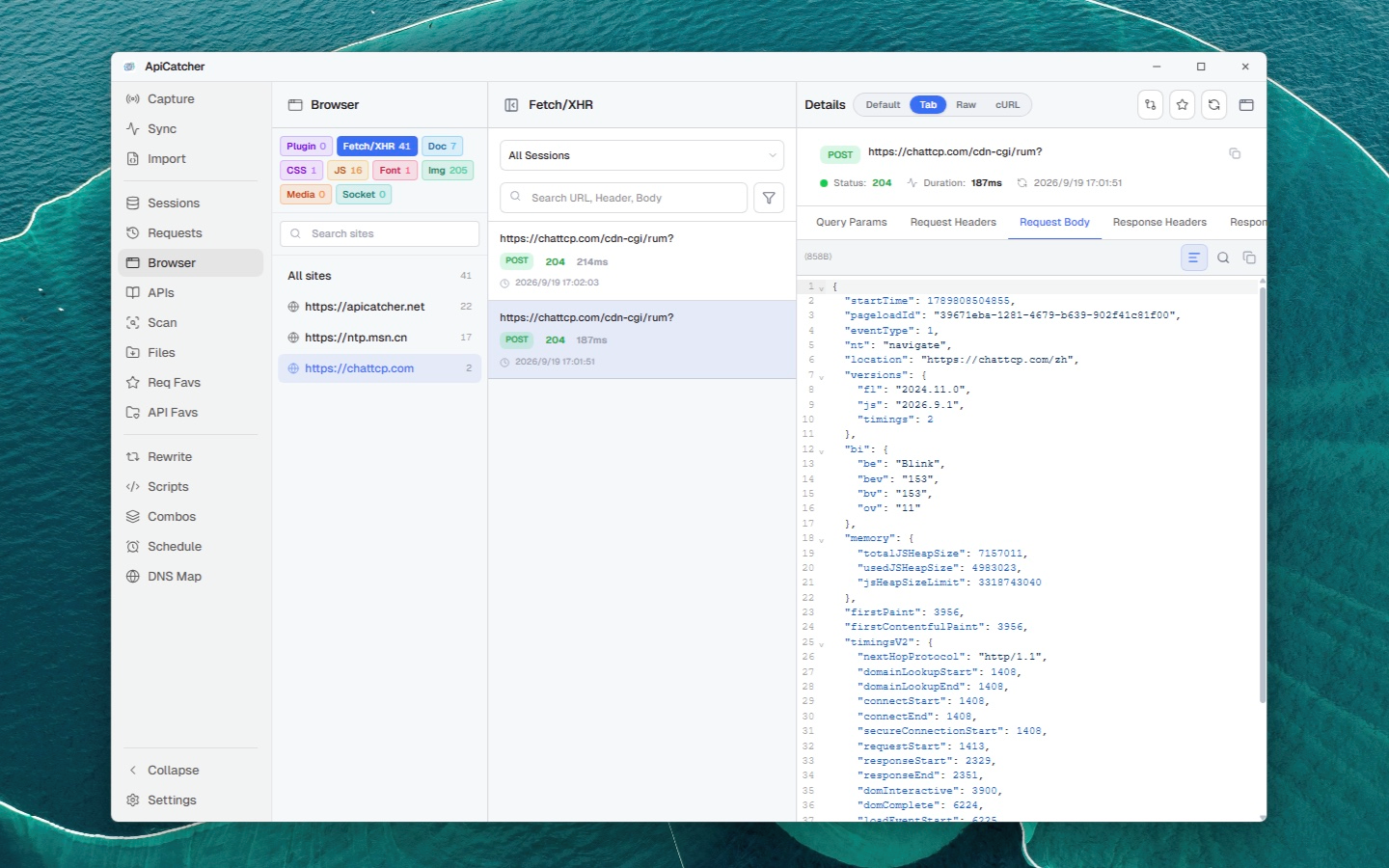
Interaction design that takes full advantage of the desktop large screen. Request and response details at a glance, making traffic analysis more efficient.
How Windows Packet Capture Works
See how system-proxy capture and TUN mode capture work.
1How Packet Capture Works
1. Start Local Proxy
When you enable capture in ApiCatcher, it starts a secure HTTP/HTTPS proxy service locally on your computer. The listening port can be viewed and modified in the main interface or settings (default port: 8888).
2. Auto-Configure System Proxy
After enabling capture, ApiCatcher modifies the Windows registry to automatically set the current user's system proxy address to 127.0.0.1:port and broadcasts a notification to system applications.
3. Traffic Redirection & Decryption
At this point, system network traffic will be automatically redirected to the ApiCatcher proxy service. To decrypt HTTPS encrypted traffic, ApiCatcher guides or one-click imports the CA root certificate into the Windows system's 'Trusted Root Certification Authorities' store, dynamically issuing domain certificates during TLS handshakes with applications to perform man-in-the-middle (MITM) decryption and analysis.
✓Applications that natively support system proxy (direct capture):
- Chrome browser: Chrome automatically reads and follows Windows system proxy settings by default, so after enabling capture, HTTP/HTTPS traffic on Chrome will appear directly in ApiCatcher.
- Most desktop clients that use system network connections by default.
⚠Scenarios that don't support system proxy (manual configuration required):
- Command-line terminal tools (such as curl, wget, git in cmd or PowerShell) do not automatically read system proxy settings by default.
- Many development debugging tools or programming language runtimes (such as Node.js, Python, Go, or Java applications) ignore system proxy by default when making network requests.
- High-security clients with SSL Pinning (certificate binding) enabled.
>_Command-Line Tool (curl) Proxy Configuration
curl in Windows command-line terminals (PowerShell or CMD) does not follow the system proxy by default. You need to explicitly specify proxy parameters:
1. Route a Single Request Through Proxy
You can specify the proxy address using the -x parameter when running the command (assuming your ApiCatcher is listening on port 8888):
curl -x http://127.0.0.1:8888 https://api.github.comSince ApiCatcher performs man-in-the-middle decryption on HTTPS requests, if your terminal has not yet trusted the ApiCatcher certificate, curl may show certificate security errors. You can add the -k parameter to temporarily ignore certificate verification:
curl -k -x http://127.0.0.1:8888 https://api.github.com2. Configure Global Proxy for the Current Terminal Window
If you want all subsequent commands in the current terminal window to automatically go through the proxy, you can set environment variables:
$env:http_proxy="http://127.0.0.1:8888"
$env:https_proxy="http://127.0.0.1:8888"set http_proxy=http://127.0.0.1:8888
set https_proxy=http://127.0.0.1:8888To cancel the proxy configuration, clear the corresponding variables in the current session.