ApiCatcher for Burp Suite Extension
Simply use the ApiCatcher App on your iPhone/iPad and install this extension on Burp Suite to sync the captured HTTP/HTTPS traffic from iOS to Burp Suite for real-time analysis.
Why do you need it?
Using ApiCatcher to capture traffic on iOS doesn't require a computer proxy; it intercepts traffic based on a VPN mechanism, eliminating tedious proxy configurations. With ApiCatcher's Burp Suite extension, the captured traffic can be synced to your Burp Suite in real-time via WebSocket protocol.
How to Install and Use
Step 1: Load the extension in Burp Suite
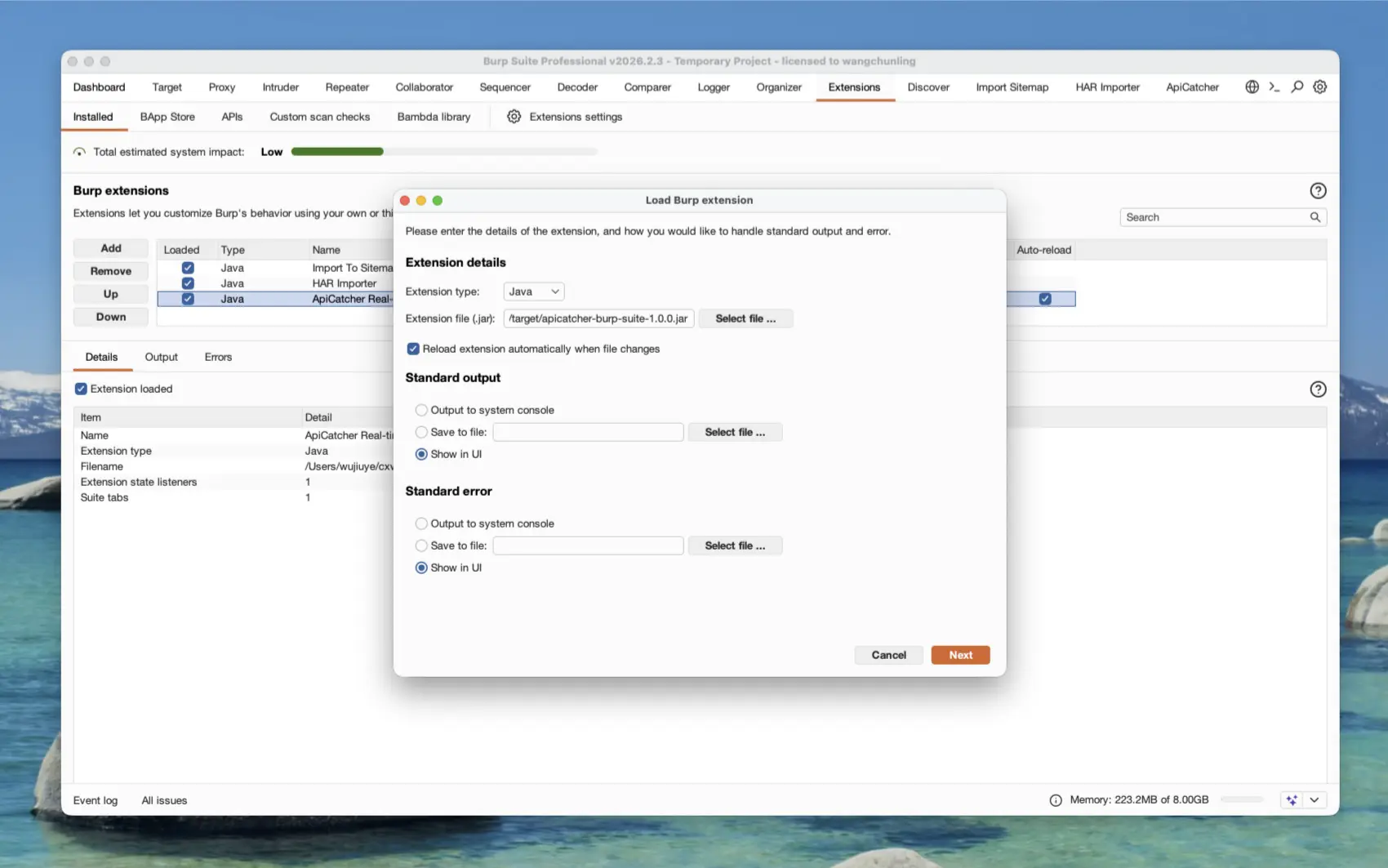
Download the .jar package of this project (go to GitHub to download, or compile the source code yourself). Open Burp Suite, go to the Extensions -> Installed tab, click Add, select Extension type Java in Extension Details, and choose the downloaded .jar file to load.
Step 2: Configure Sync Parameters
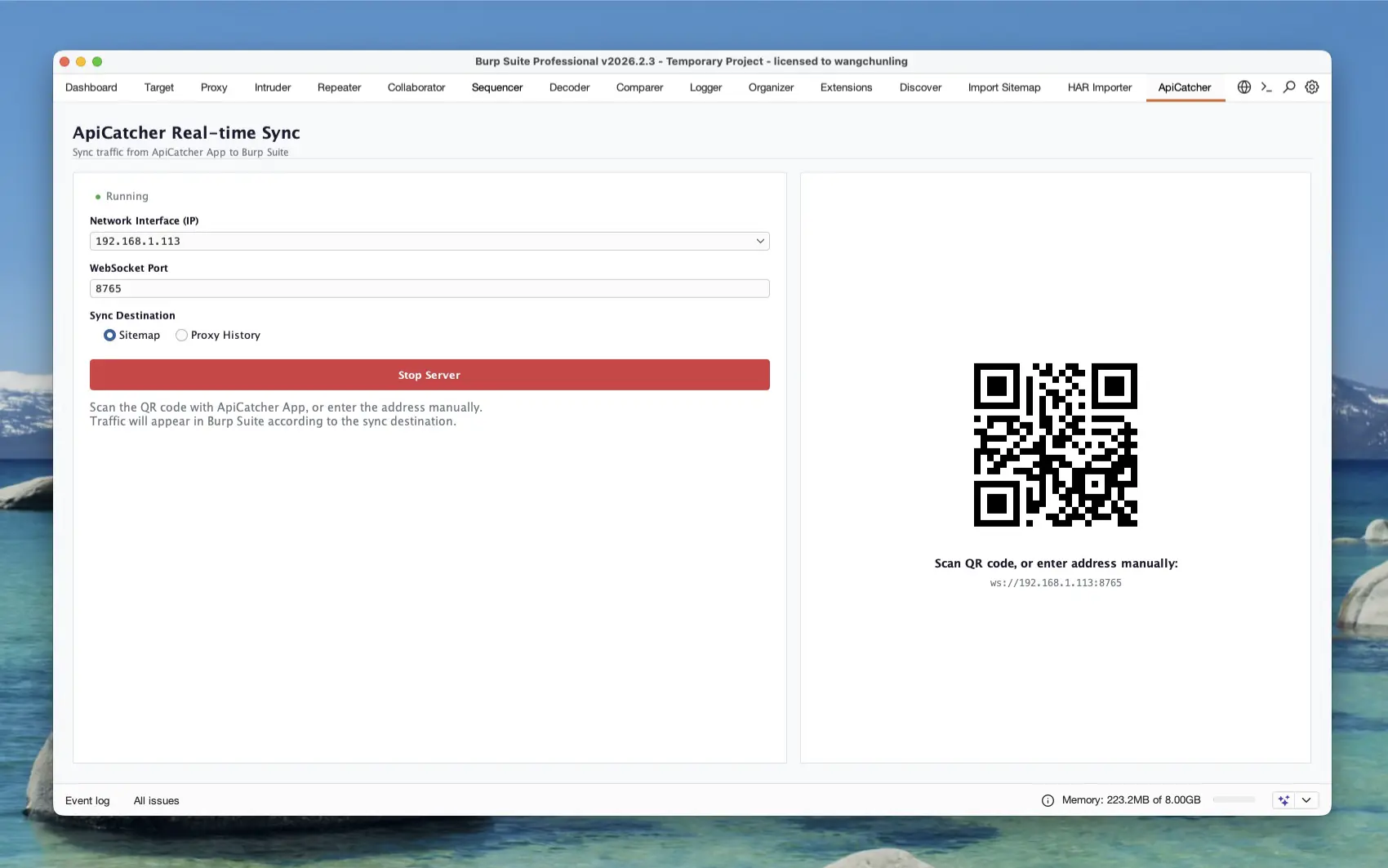
After the extension is loaded successfully, an ApiCatcher tab will appear at the top. Ensure the WebSocket sync service is started here. If not, click Start Server to start it. After starting, open the ApiCatcher App on iOS, click the '+' button in the top right corner of the home page, select "Real-time Sync" in the pop-up menu, switch to "Burp Suite" or "Custom Receiver", scan the QR code on the screen or enter the address manually to establish the connection. By default, traffic is synced to Burp Suite's Sitemap, and you can switch the sync target to Burp Suite's Proxy History.
Step 3: View Target Site Map (Sitemap)
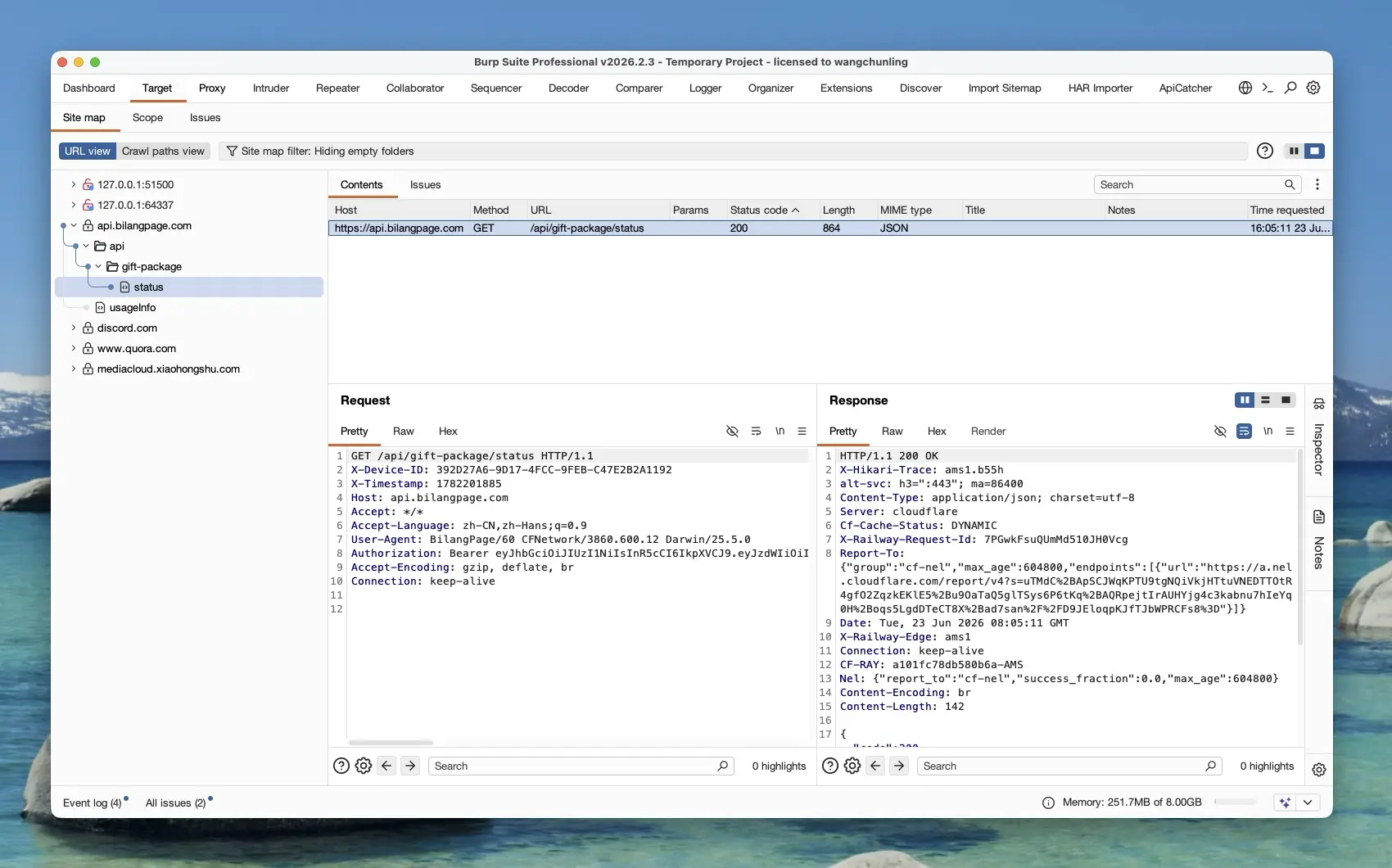
When iOS starts capturing packets, the requests will be automatically synced to Burp Suite. You can see the real-time synced domains and API hierarchy in Target -> Site map, helping you quickly understand the API overview of the target App.
Step 4: Analyze Requests in Proxy History
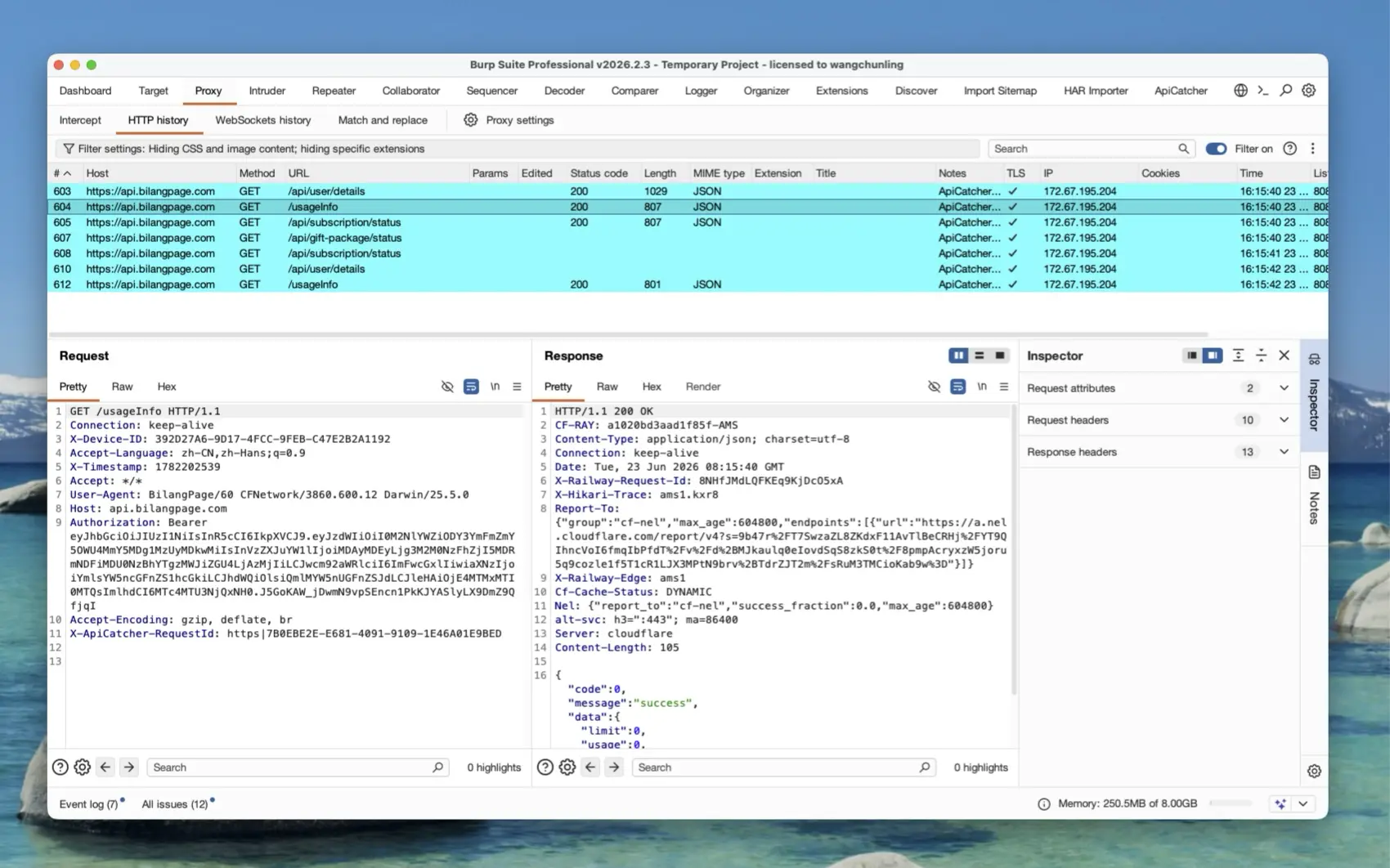
When you switch the sync target to "Proxy History", all HTTP/HTTPS traffic will be synced and displayed in Proxy -> HTTP history. You can view the detailed request/response content here just like analyzing computer traffic, and send key requests to Repeater or Intruder for further testing. Note that requests synced to Proxy History will be appended with a request header "X-ApiCatcher-RequestId".
Step 5: View Runtime Logs
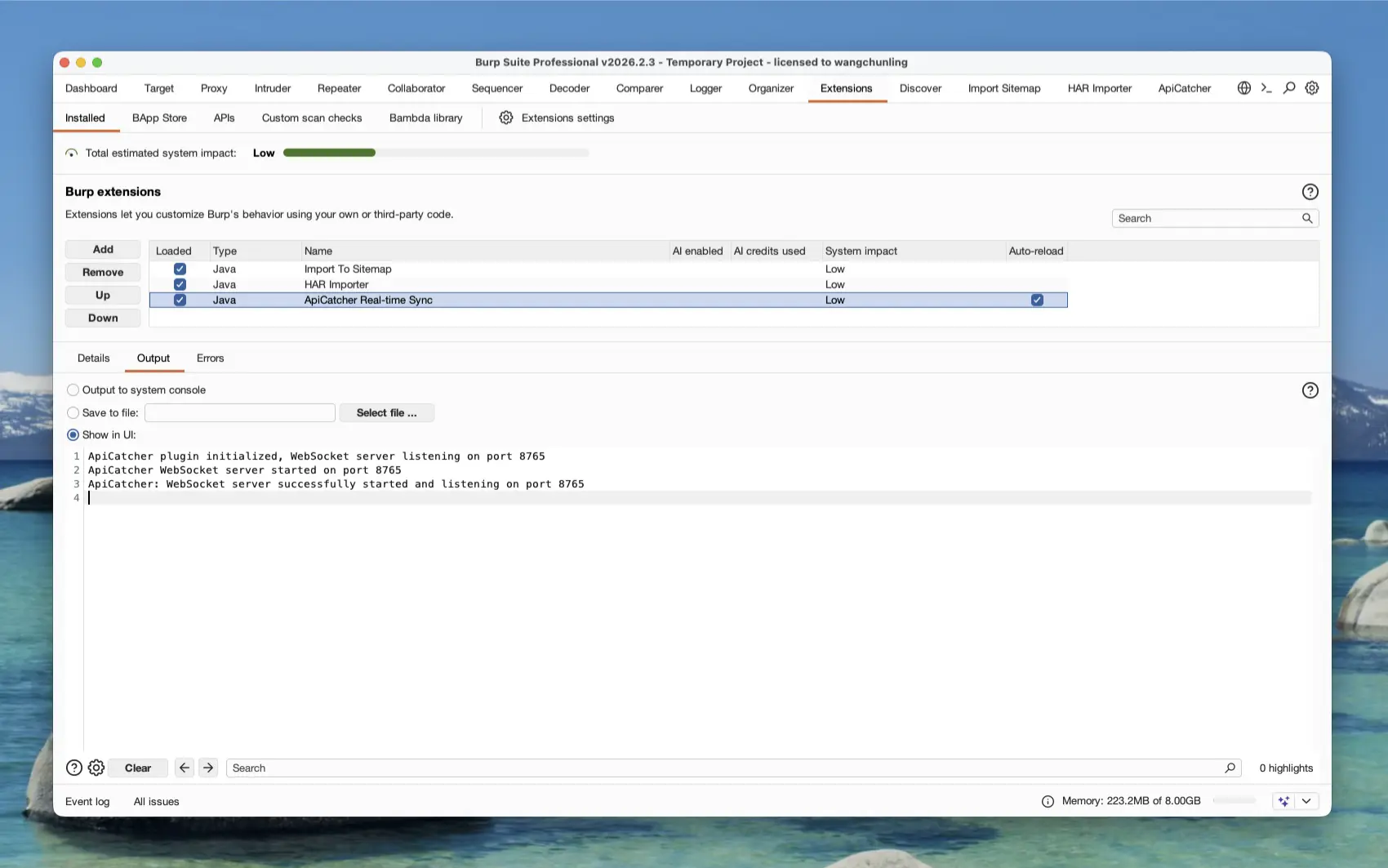
If you encounter sync problems, you can go back to the Extensions -> Installed page, select the ApiCatcher extension, and check the detailed log output information in the Output and Errors panels below.